HDMI to Type-C Converter, 4K60HZ HDMI to USB C Adapter for XREAL Air Compatible with RayNeo,Rokid Air,Switch 2,PS5,Steam Deck


HDMI to Type-C Converter, 4K60HZ HDMI to USB C Adapter for XREAL Air Compatible with RayNeo,Rokid Air,Switch 2,PS5,Steam Deck
- Free worldwide shipping
- Pre-ship QC
- Tracked delivery
- Arrives Nov 9 – Nov 18
- Import duties included
Defective, damaged or wrong item? Free replacement or refund — just send us a short video. Details
Product details & specifications
SPECIFICATIONS
Advantage: HDMI to Type C
Application: Monitor,Projector,TV box
Brand Name: ULT-unite
Certification: CE,FCC,RoHS
Compatible Devices: RayNeo, XREAL Air,Rokid Air, Thunderbird AR, GRAWOOA, Switch Base, Steam Deck Base, PS4, PS5, Xbox,laptop,Portable DisplaysRayNeo, XREAL Air, Rokid Air, Thunderbird AR, GRAWOOA, Switch Base, Steam Deck Base, PS4, PS5, Xbox,laptop,Portable Displays
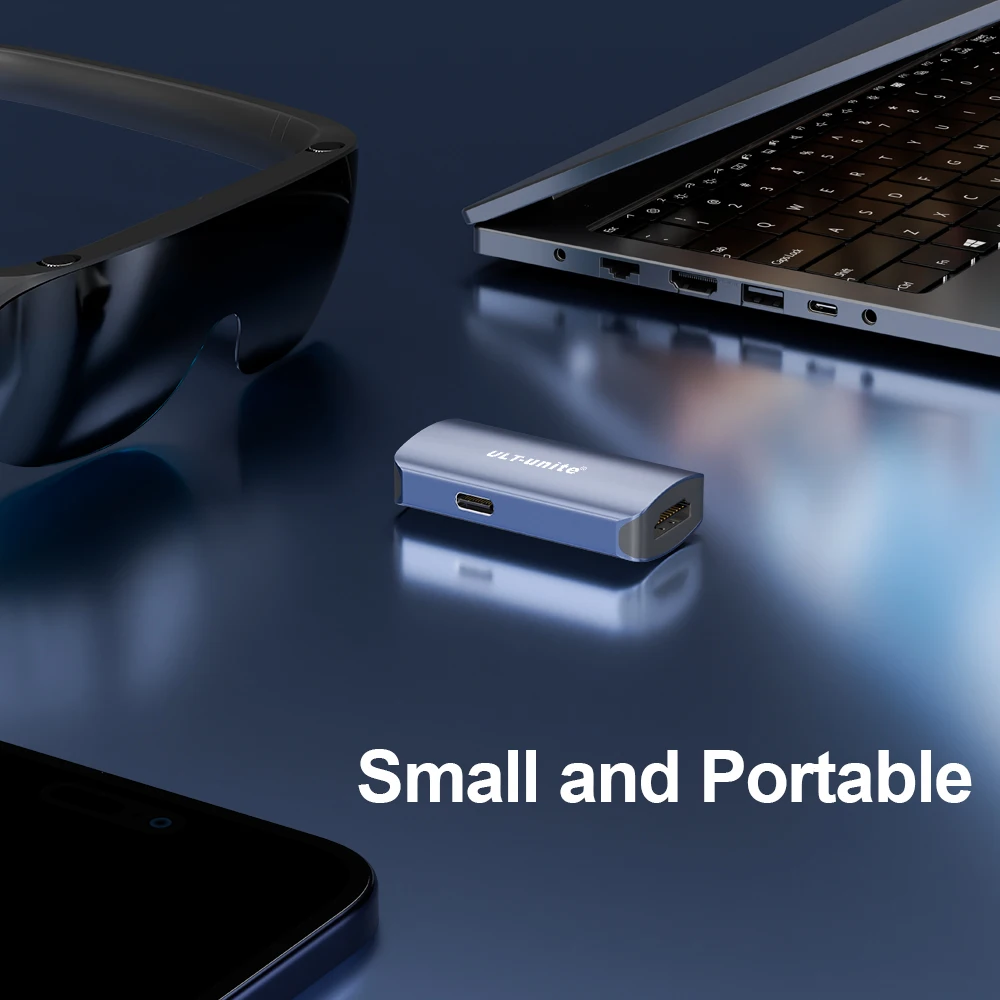
Connector A: F,HDMI-Compatible
Connector B: F,Type-C
Ethernet cable category: Others
Feature: HDMI-Compatible1.4
Feature 1: HDMI to C adapter
Feature 2: HDMI to USB C converter
Feature 3: HDMI C Type converter
Feature 4: HDMI-USB C converter
Finish Type: Others
Gender: Female
High-concerned chemical: none
Item name: HDMI to USB C Adapter for AR Glasses
Material: Metal
Model Number: S4081-0119
Origin: Mainland China
Outer Diameter: -
Package: Yes,Polybag
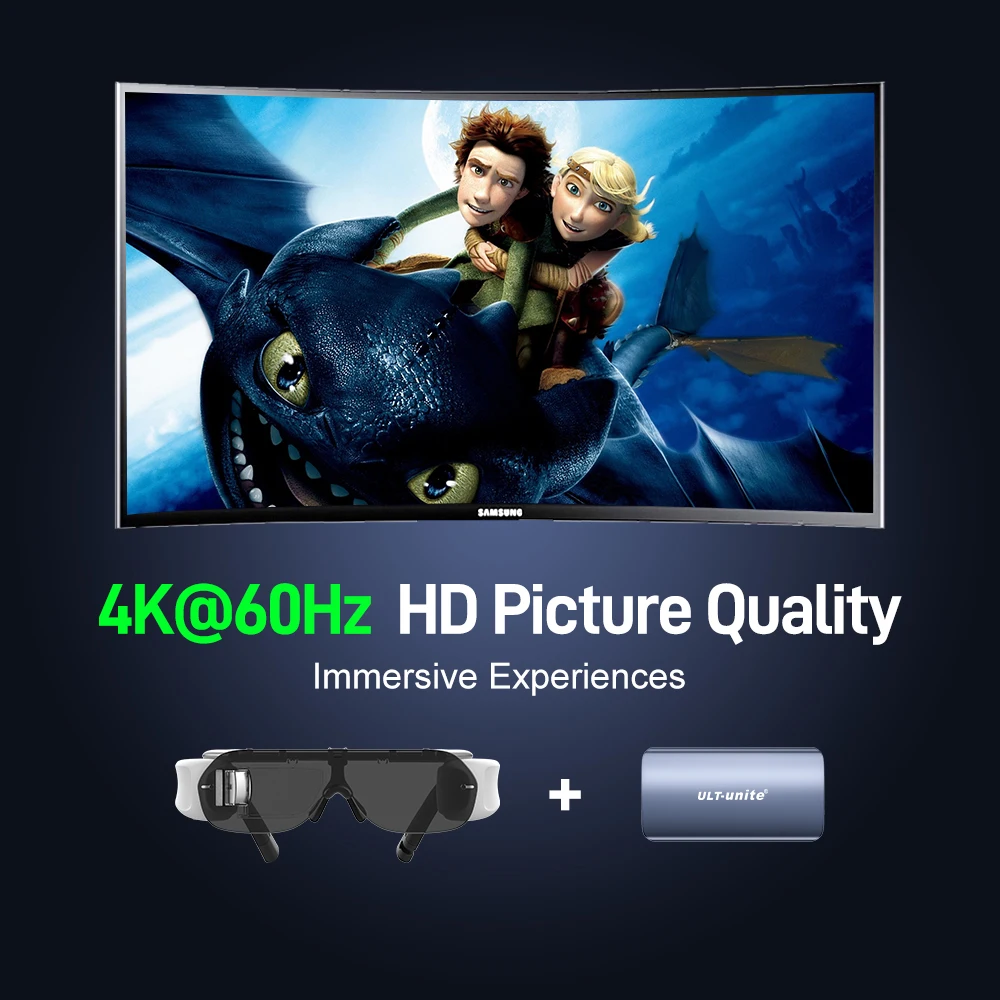
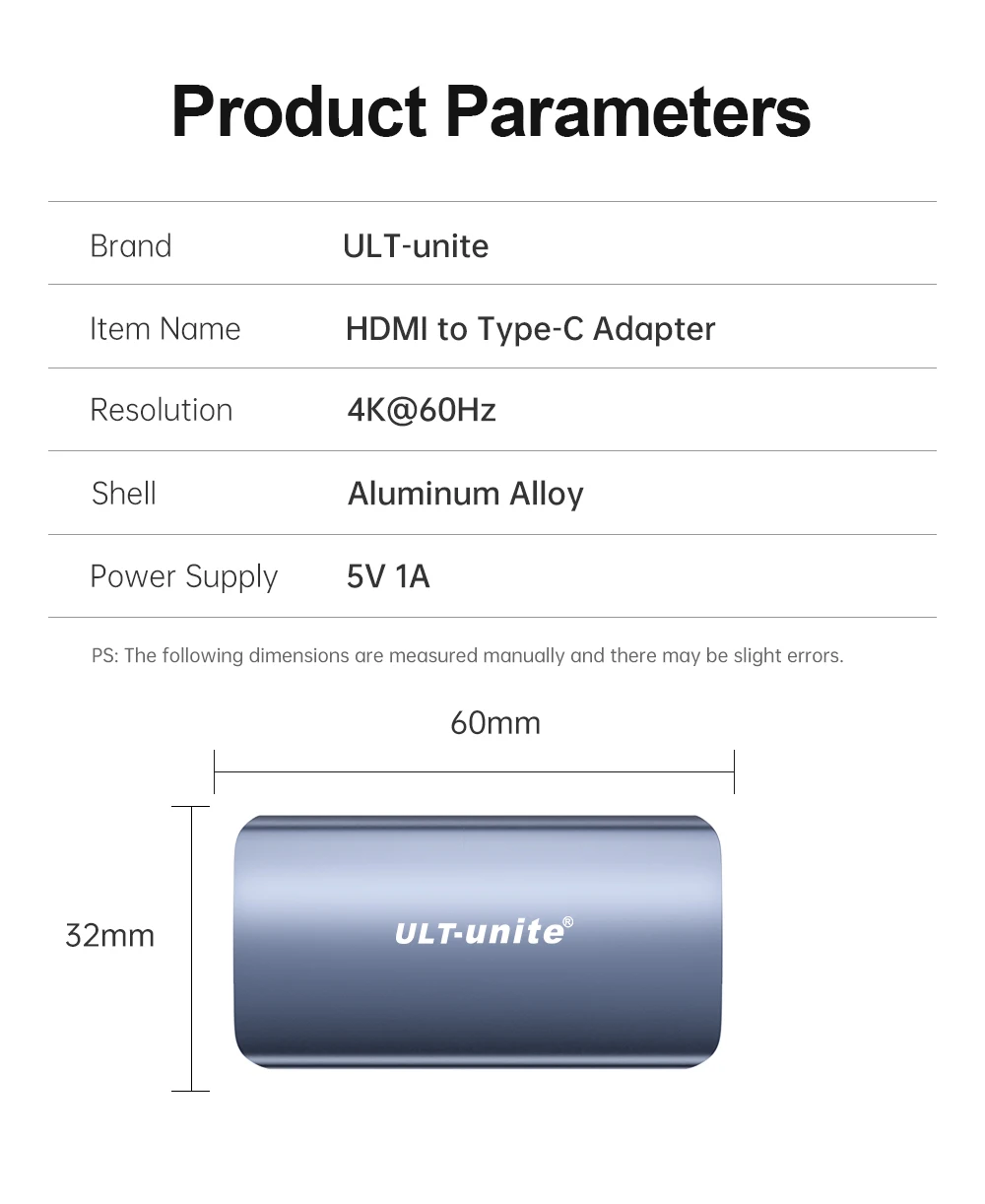
Resolution: 4K@60Hz (Max)
Shielding: Combination
Specific Uses For Product: RayNeo, XREAL Air,Rokid Air, Thunderbird AR, GRAWOOA, Switch Base, Steam Deck Base, PS4, PS5, Xbox,laptop,Portable DisplaysRayNeo, XREAL Air, Rokid Air, Thunderbird AR, GRAWOOA, Switch Base, Steam Deck Base, PS4, PS5, Xbox,laptop,Portable Displays
Type: HDMI-Compatible Cables
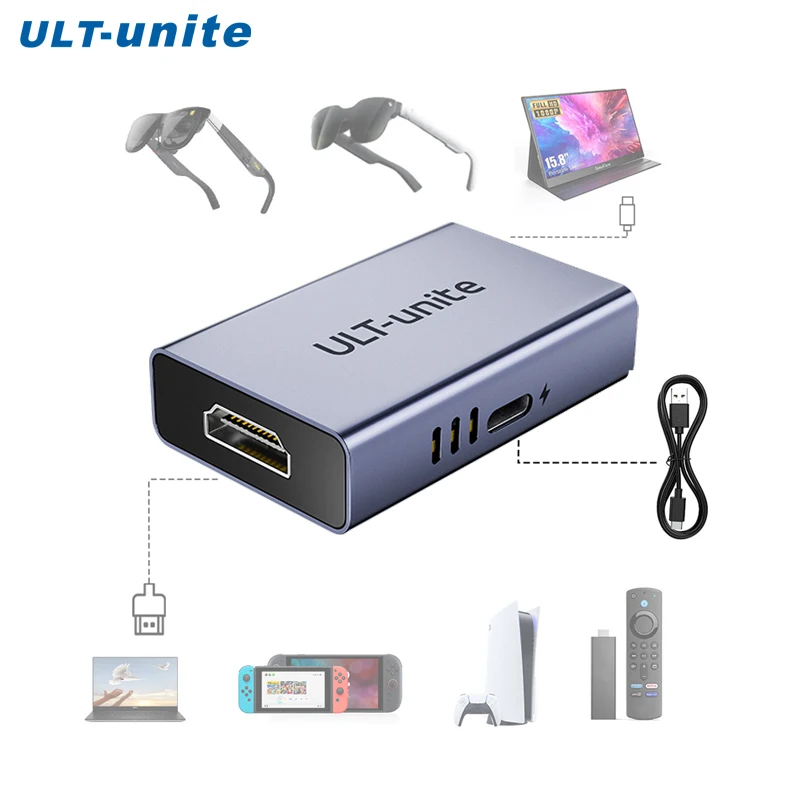
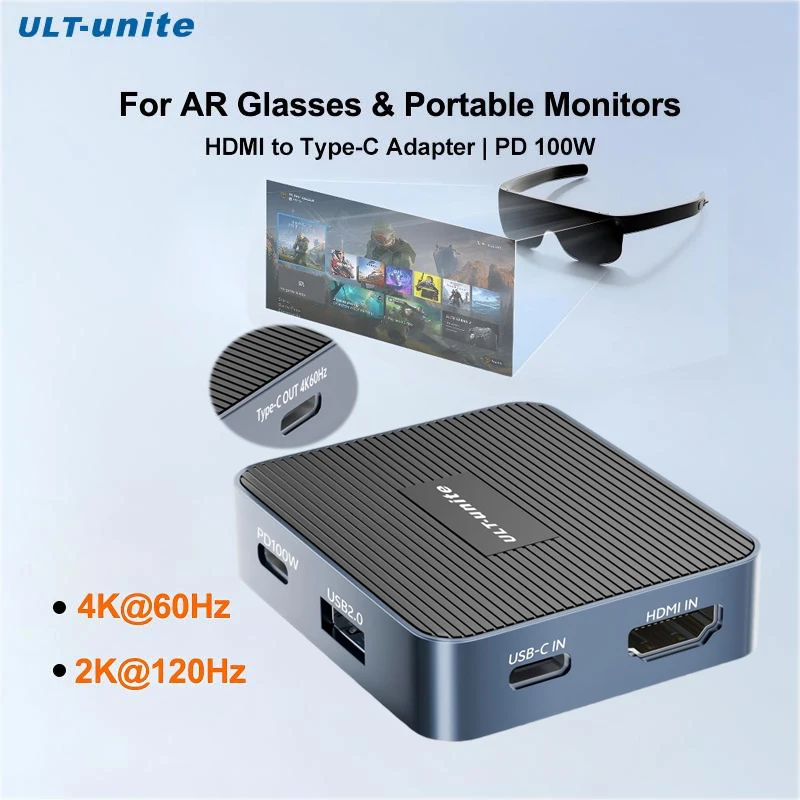
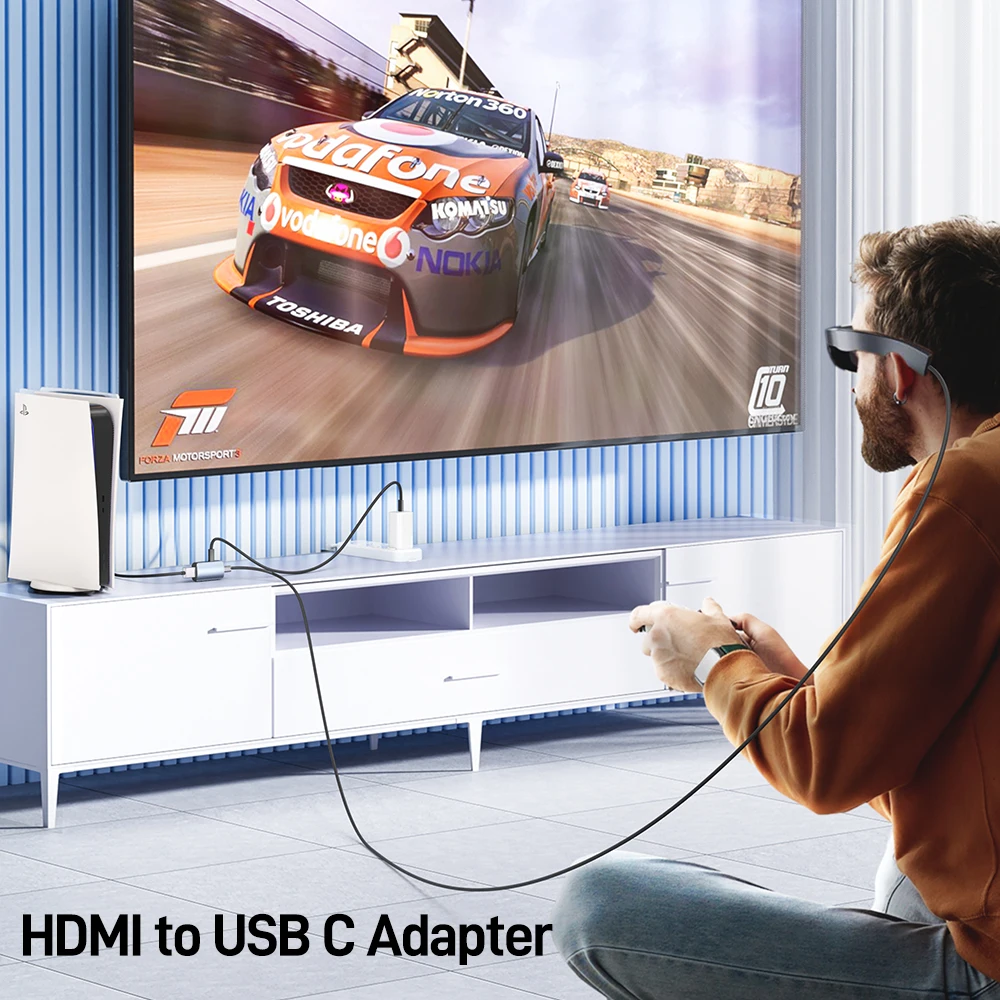
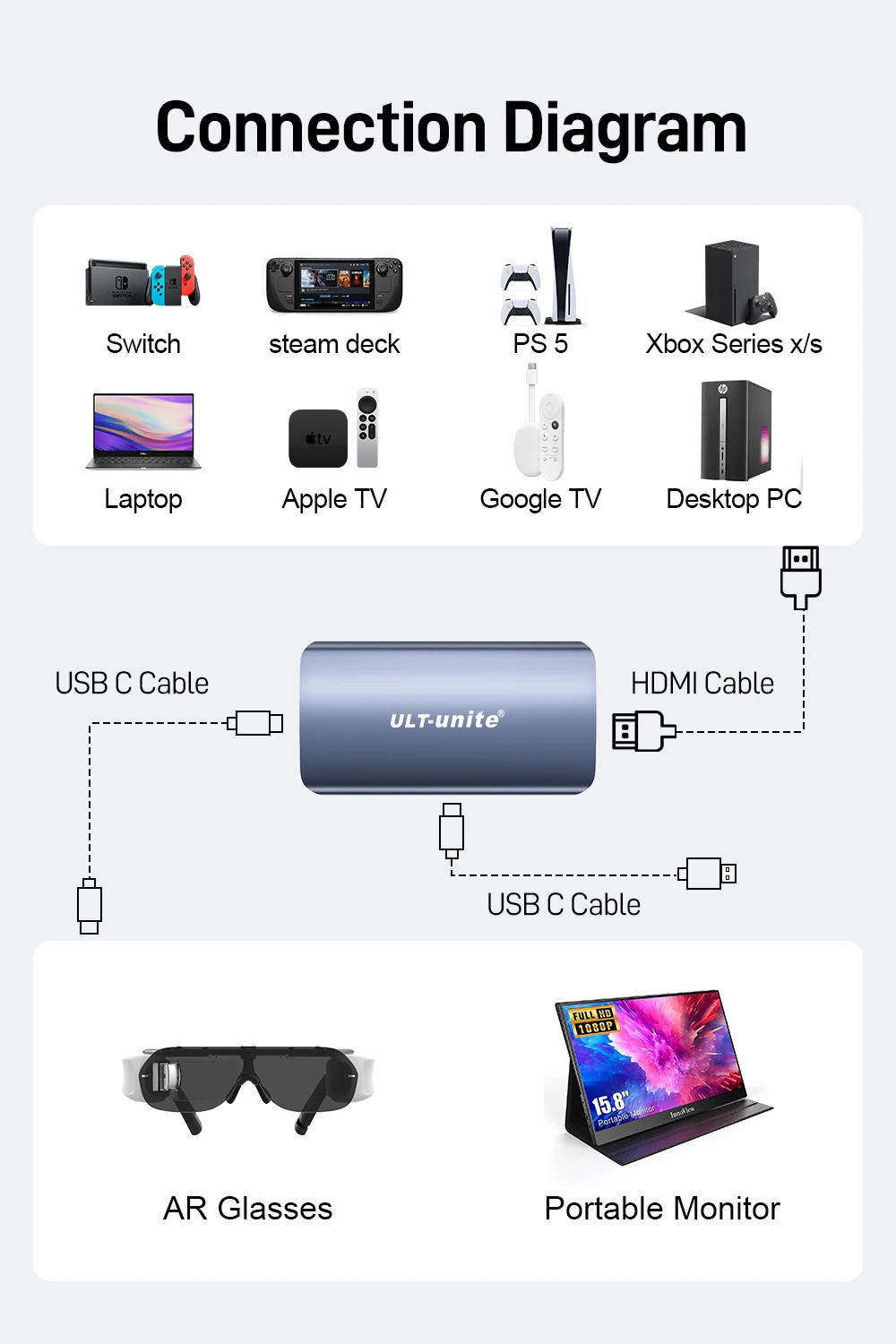
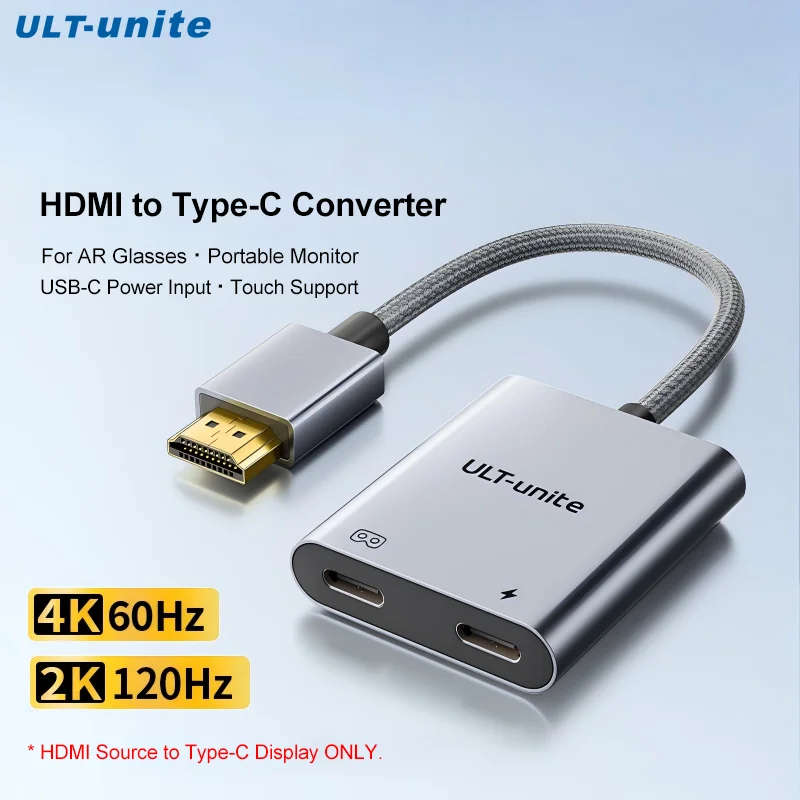 HDMI to USB C Adapter 4K60HZ HDMI to Type C Converter Compatible with RayNeo, XREAL Air, Rokid Air, Switch Base, Steam Deck Base,Switch 2 Base
The correct order for connecting the Switch2 base:
1. Connect the HDMI to Type-C converter through the HDMI port of the Switch2 base.
2. Connect the Type-C port of the converter to the AR glasses.
NOTES:
1.Not compatible with all Meta series.
2.Does not support 120Hz output for the Rayneo Air 2s. This is because the Rayneo Air 2s does not support 120Hz via HDMI output, and it only supports 120Hz through direct USB-C connections.
3.The signal direction is ONLY HDMI → Type-C. It cannot be used in reverse.
4.When connecting XREAL to Nintendo switch, you must use the original Nintendo switch charger to power the base, activate the TV mode, and then connect the adapter to XREAL, and remove the controller to operate the game.
5. When the adapter is connected to the power supply, please do not use the Apple charger (because the power is too low).
6.When the screen is not displayed when connected to the iPhone or other devices, you can try to reseat it several times
7. If the screen does not display properly after connecting the HDMI to USB C Adapter correctly, please try to connect again to check whether the contact if bad.
===================================================================================================
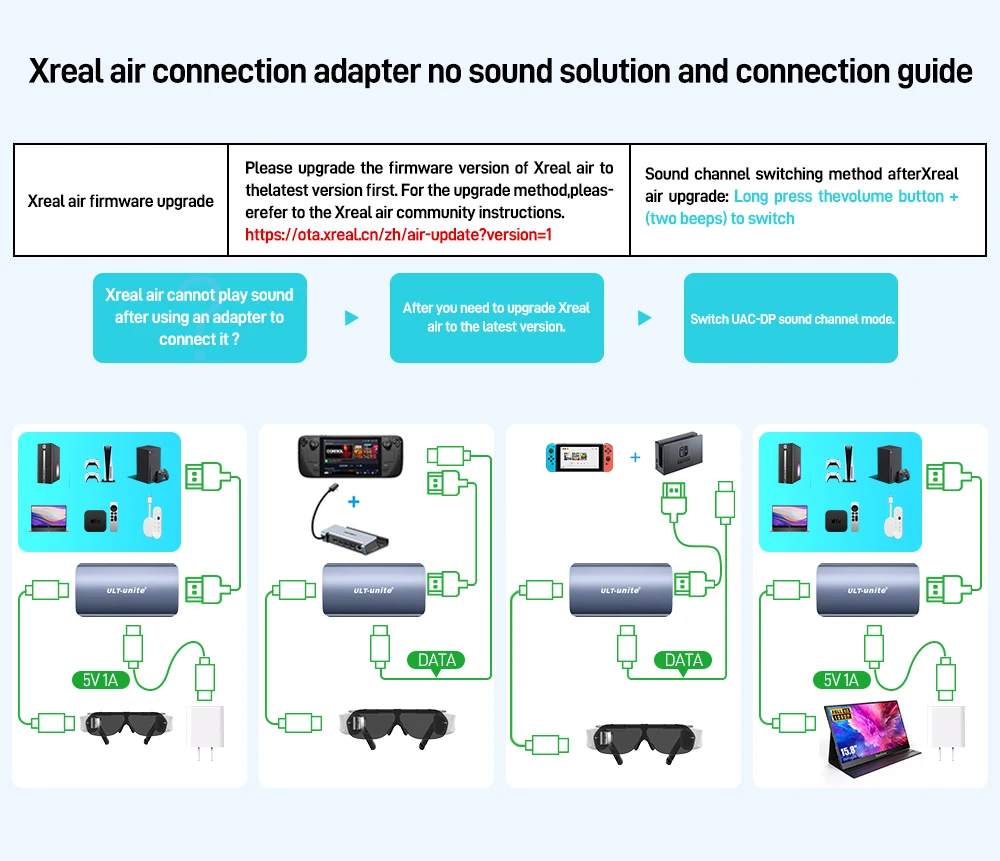
If there is no sound when HDMI to USB C Adapter connected to Xreal AR glasses:
1. Please upgrade your Xreal glasses firmware to the latest version (update on your phone's Xreal App)
2. After upgrading, press and hold the brightness button - (ringing once), then press and hold brightness + (ringing twice), wait for 1 second, and the Audio and video will be displayed at the same time (note: this operation is required after each re-plug)
3. The audio output of the HDMI output device also needs to be switched to headphone output or other peripherals
Xreal if connected: desktop computer, laptop, TV box, PS4/5 and other HDMI output devices:
The USB-A power cable included in the HDMI to USB C Adapter needs to be connected to another power source, not the USB-A port of the HDMI output device. This is because the USB-A port of the HDMI output device is underpowered.
Please note: After the firmware of XREAL AR glasses is upgraded to the latest version, press and hold the brightness button - (ringing once), then press and hold brightness + (ringing twice), wait for 1 second, and the audio and video will be displayed at the same time (Note: this operation is required after each replugging)
Xreal if connected to Nintendo Switch:
Both the HDMI to USB C Adapter and the USB-A power cable should be connected to the base of the switch(First, use the original charger to power the base of the switch, then connect, and then connect the adapter after the TV mode is activated)
1. The controller must be removed to operate the game
2. The original Nintendo switch charger must be used to power the base
Please note: After the firmware of XREAL AR glasses is upgraded to the latest version, press and hold the brightness button - (ringing once), then press and hold brightness + (ringing twice), wait for 1 second, and the audio and video will be displayed at the same time (Note: this operation is required after each replugging)
When HDMI to USB C is connected to the Portable Monitor: (must be in this order)
First, use the Type-C power cable included in the package to power the HDMI to USB C Adapter (because the battery is too low to draw power from the HDMI output device) before continuing to connect other ports.