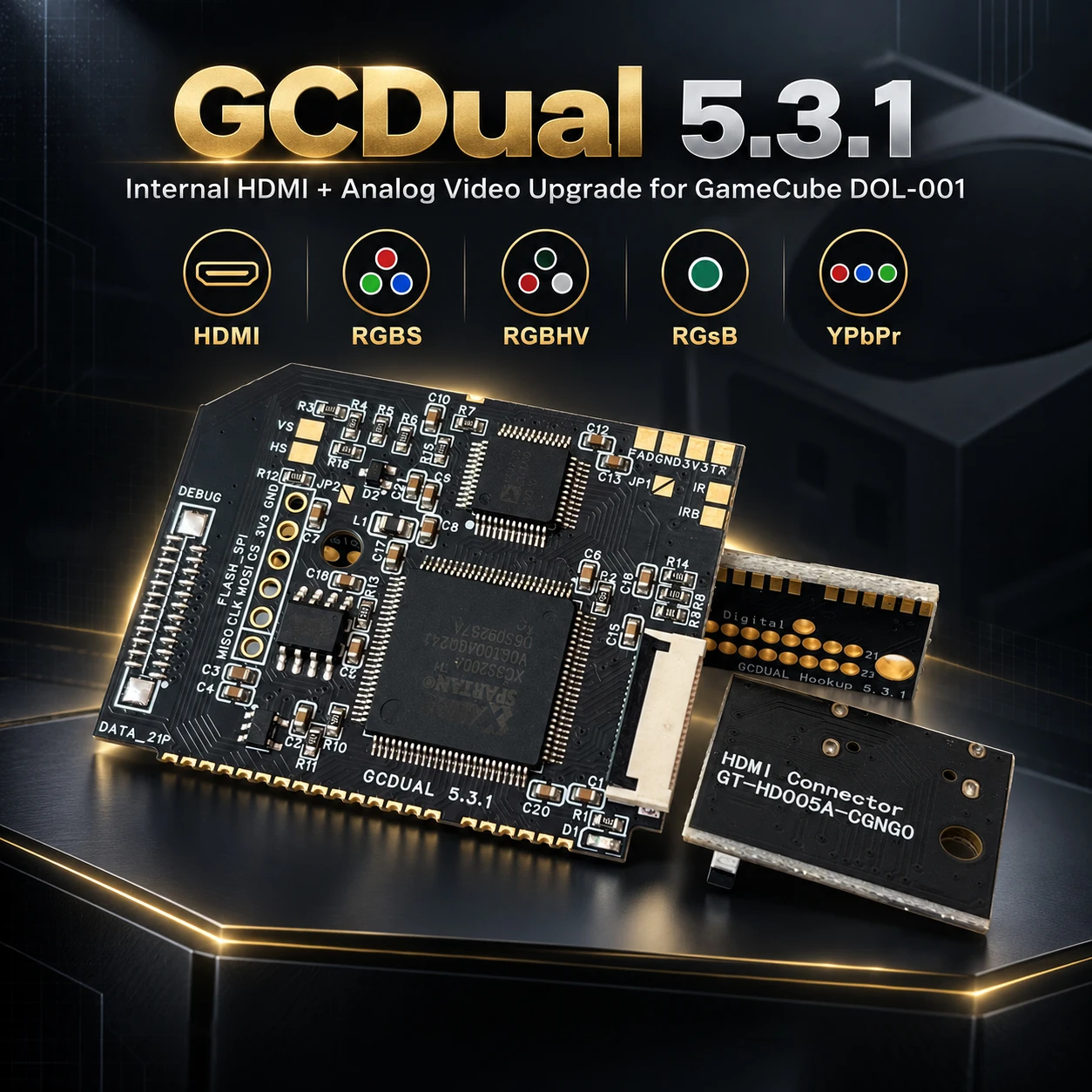
GCDual 5.3.1 HDMI Video Mod Kit for GameCube DOL-001 GCVideo Digital Audio RGBS RGBHV RGsB YPbPr Output Professional Install


GCDual 5.3.1 HDMI Video Mod Kit for GameCube DOL-001 GCVideo Digital Audio RGBS RGBHV RGsB YPbPr Output Professional Install
- Free worldwide shipping
- Pre-ship QC
- Tracked delivery
- Arrives Nov 11 – Nov 20
- Import duties included
Defective, damaged or wrong item? Free replacement or refund — just send us a short video. Details
Product details & specifications
SPECIFICATIONS
Accessories Type: Accessory Kits
Bluetooth range: /
Built-in GCVideo OSD: Controller Menu Control
Cable features: Retractable
Choice: yes
Compatible Brand/Model: Nintendo
Compatible Nintendo Model: Nintendo GameCube
Control Method: Push button
Controls Type: Others
Electric: No
Enclosure material: Others,Plastic
Fastening type: Screw,Bracket
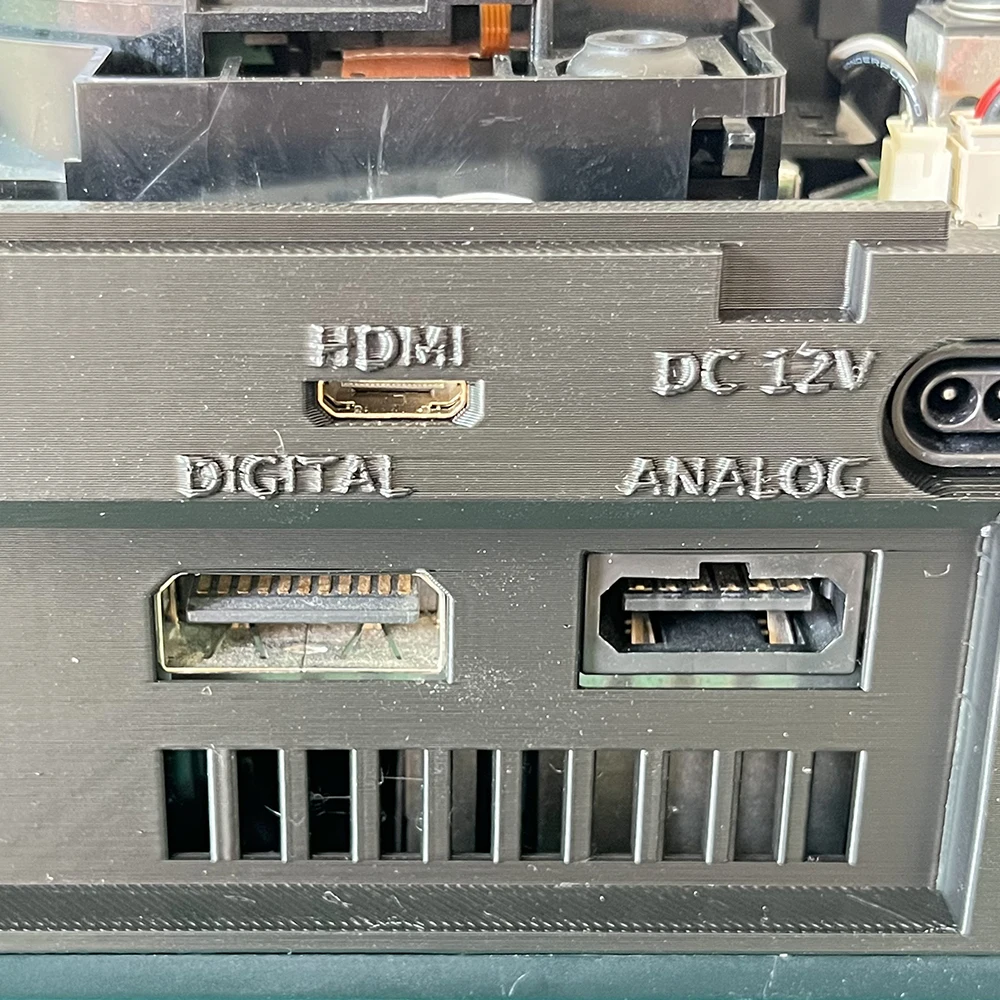
HDMI + Analog Output: Direct Digital Video
HDMI Digital Audio: Made for DOL-001
Harness Feature: Others
High-concerned chemical: none
Model Number: GCDual 5.3.1
Occasion: Others
Origin: Mainland China
Platform: Other
Portable: Yes
RGB & YPbPr Support: 480p / 576p Line Doubling
Reusability: Reusable
Sensor Technology: Others
With USB: No
Must Read Before Buying
**Professional Installation Only** – Not recommended for beginners.
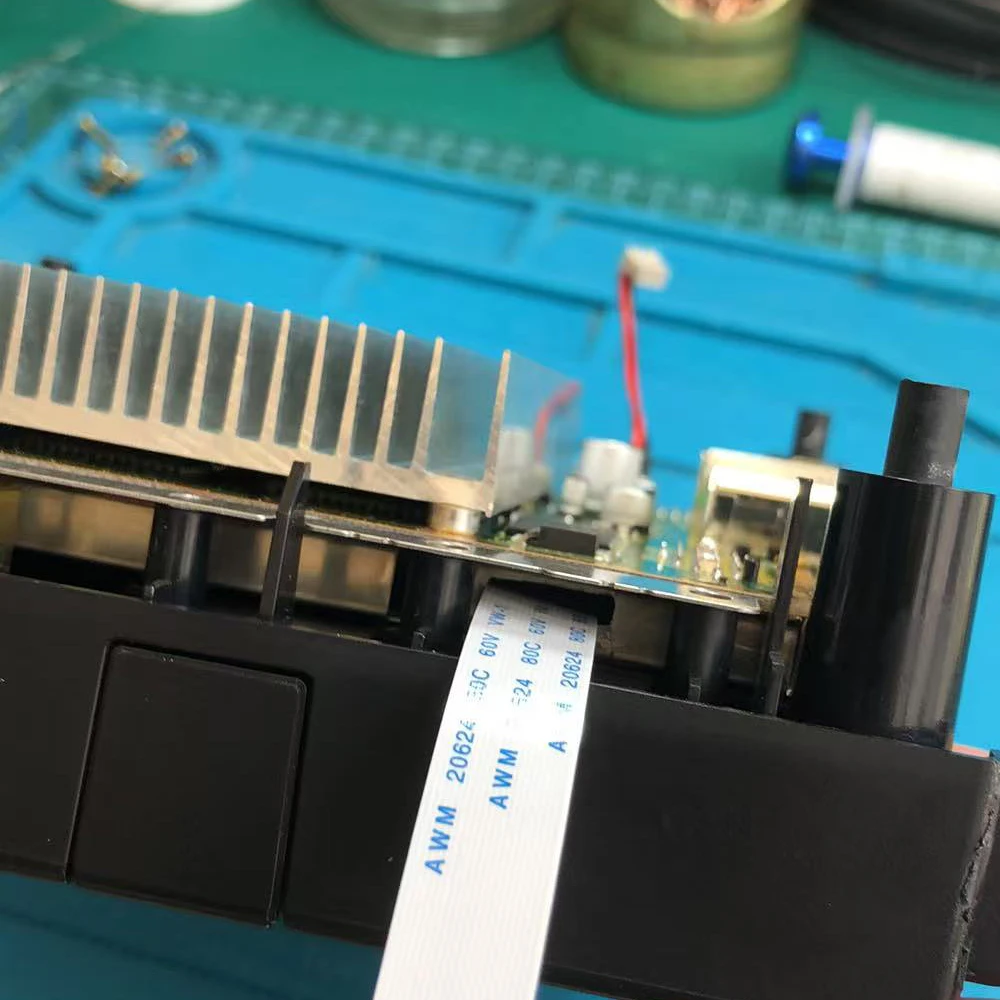
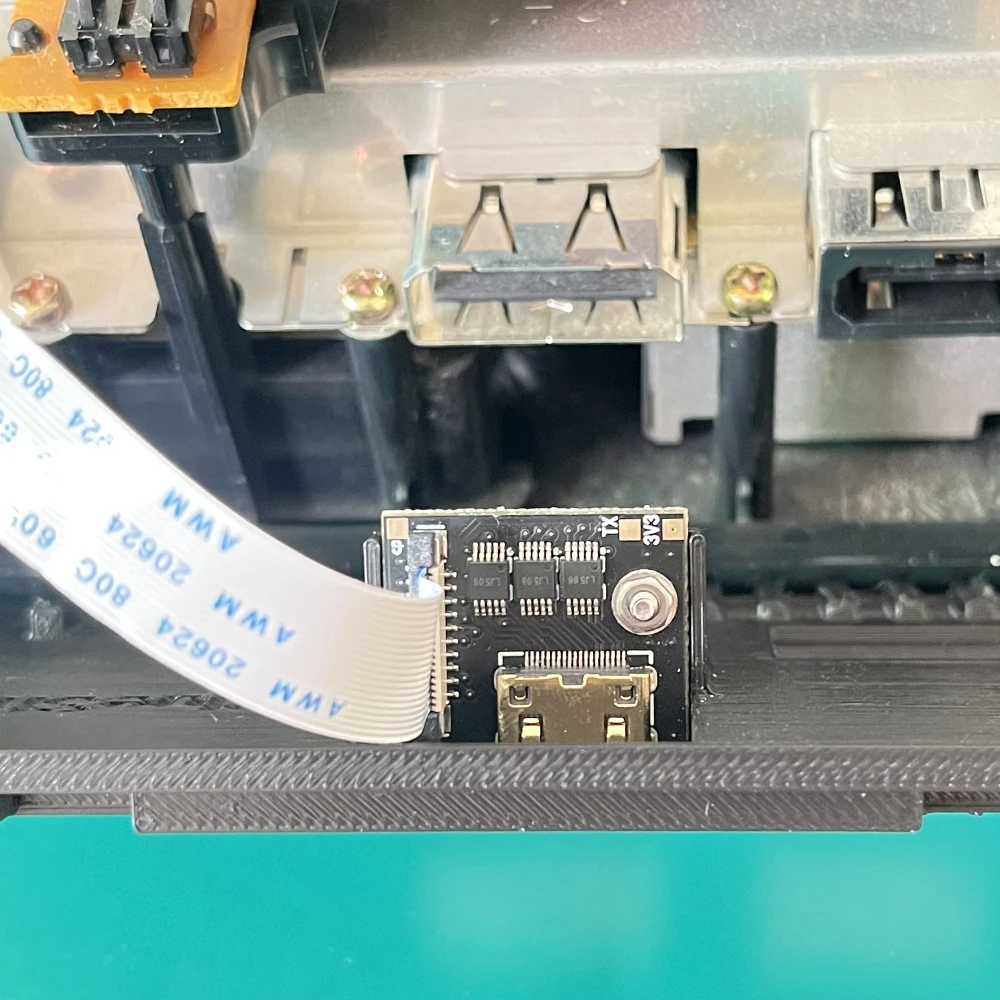
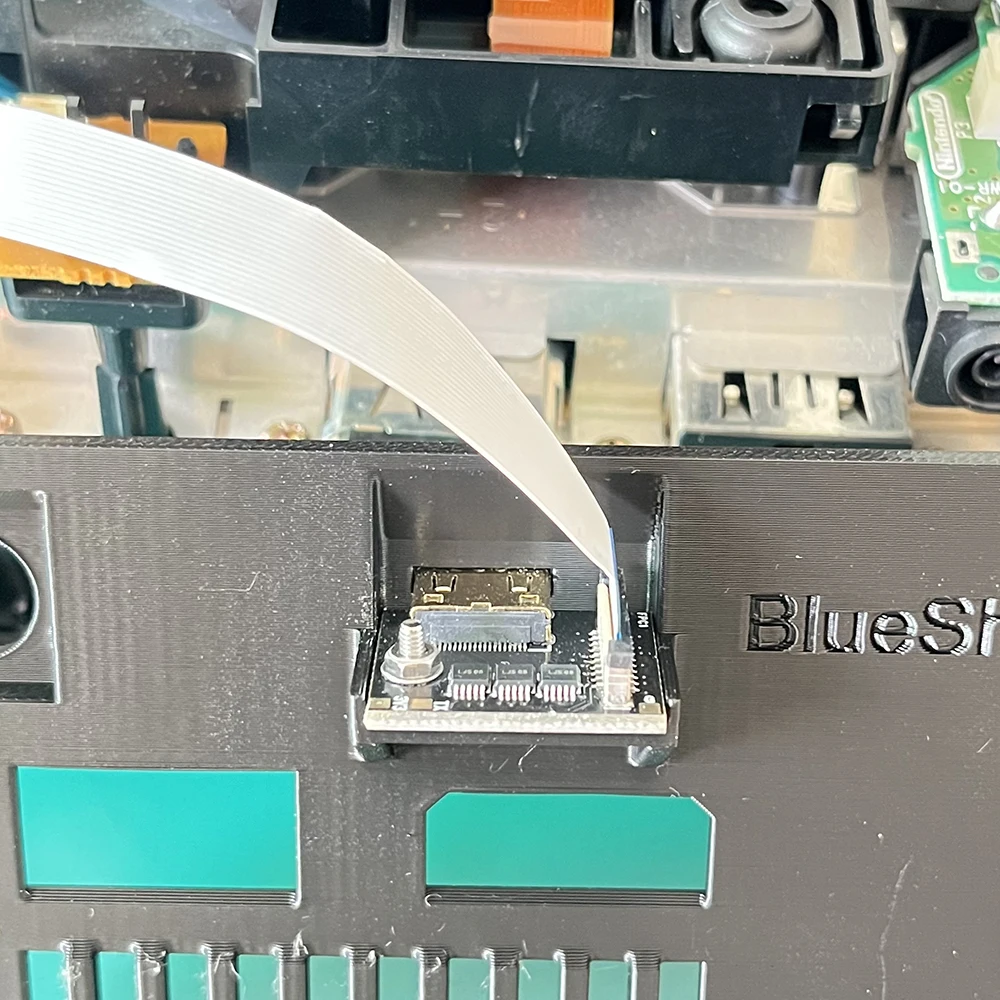
**Read the Installation Guide First** – Please check the QSB, FFC cable, HDMI board and wiring steps before ordering.
Installation Guide: https://www.game-tech.us/gcdual-install-guide-2/
QSB Wiring Guide:https://www.game-tech.us/gcdual-jumpers-guide/
**For GameCube DOL-001** – Confirm console compatibility before purchase.
**GCDual 5.3.1 Optimized Version** – Gold-plated PCB contacts for improved durability and connection reliability.
**Installation Risk** – Incorrect soldering or assembly may damage the kit or console.
About GCDual 5.3.1
What is the GCDual?
**GCDual 5.3.1 is an internal video upgrade board for the GameCube DOL-001.** It uses the open-source GCVideo FPGA platform to take the console’s original digital video signal directly from the Digital AV interface, avoiding an analog conversion stage. It provides high-quality digital video through HDMI while also retaining advanced analog video output options.
What can it do?
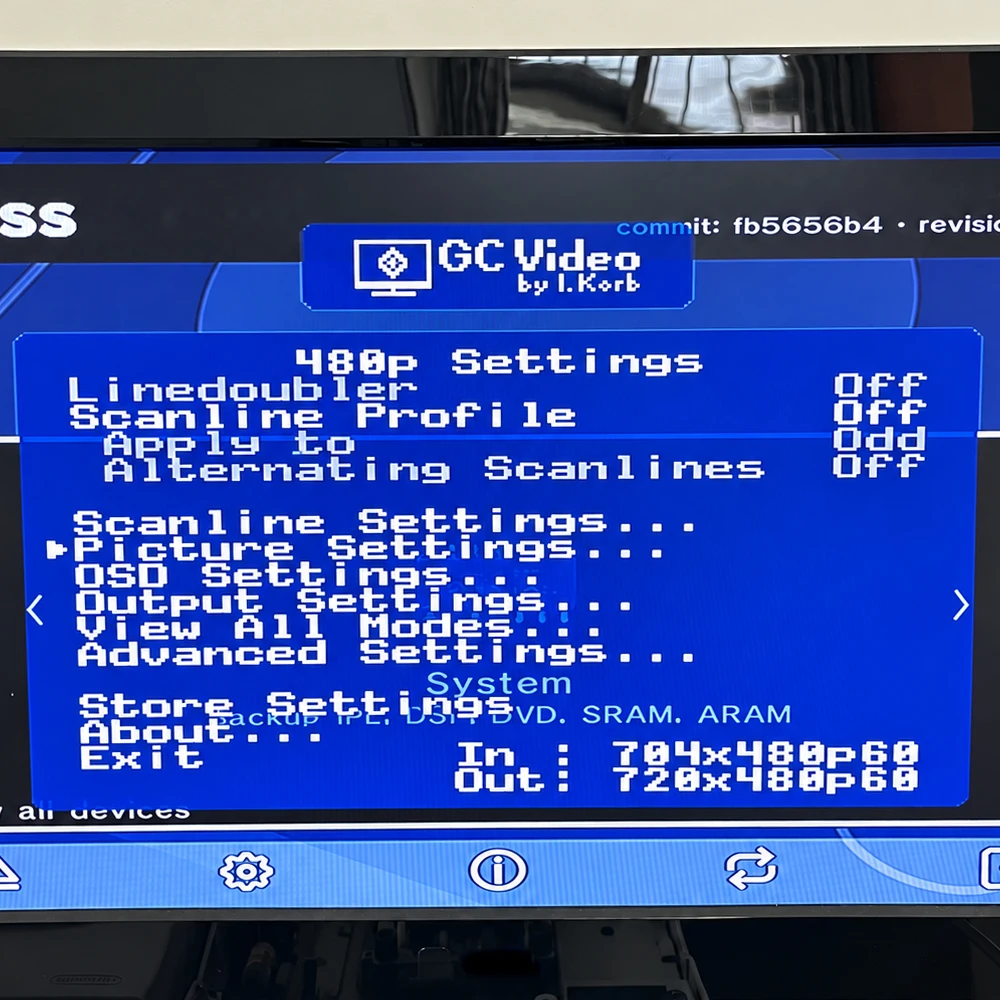
GCDual provides **digital and analog video output at the same time**. It supports HDMI video and digital audio, RGB and YPbPr component video, an on-screen settings menu controlled with a GameCube controller, optional scanlines, and line doubling for 240p / 288p / 480i / 576i signals to 480p / 576p. Picture and output settings can be adjusted directly through the GCVideo OSD.
**HDMI + Analog Output at the Same Time** – Enjoy digital HDMI and analog video without choosing one or the other.
* **Direct Digital Video** – Uses the GameCube’s original digital AV signal for a clean, sharp image with no analog conversion stage.
**RGB & YPbPr Support** – Flexible analog output for CRTs, professional monitors, scalers and modern displays.
**480p / 576p Line Doubling** – Converts supported 240p, 288p, 480i and 576i signals for cleaner progressive output.
**Built-in GCVideo OSD** – Adjust video mode, scanlines, picture position, RGB range and other settings directly on screen.
**Controller Menu Control** – Open and operate the settings menu using a GameCube controller.
**HDMI Digital Audio** – Video and audio through a single HDMI connection.
**Made for DOL-001** – A powerful internal video upgrade for compatible GameCube DOL-001 consoles.
**One Upgrade. HDMI + RGB + YPbPr. Clean Digital Video, Flexible Analog Output.**
Package Includes:
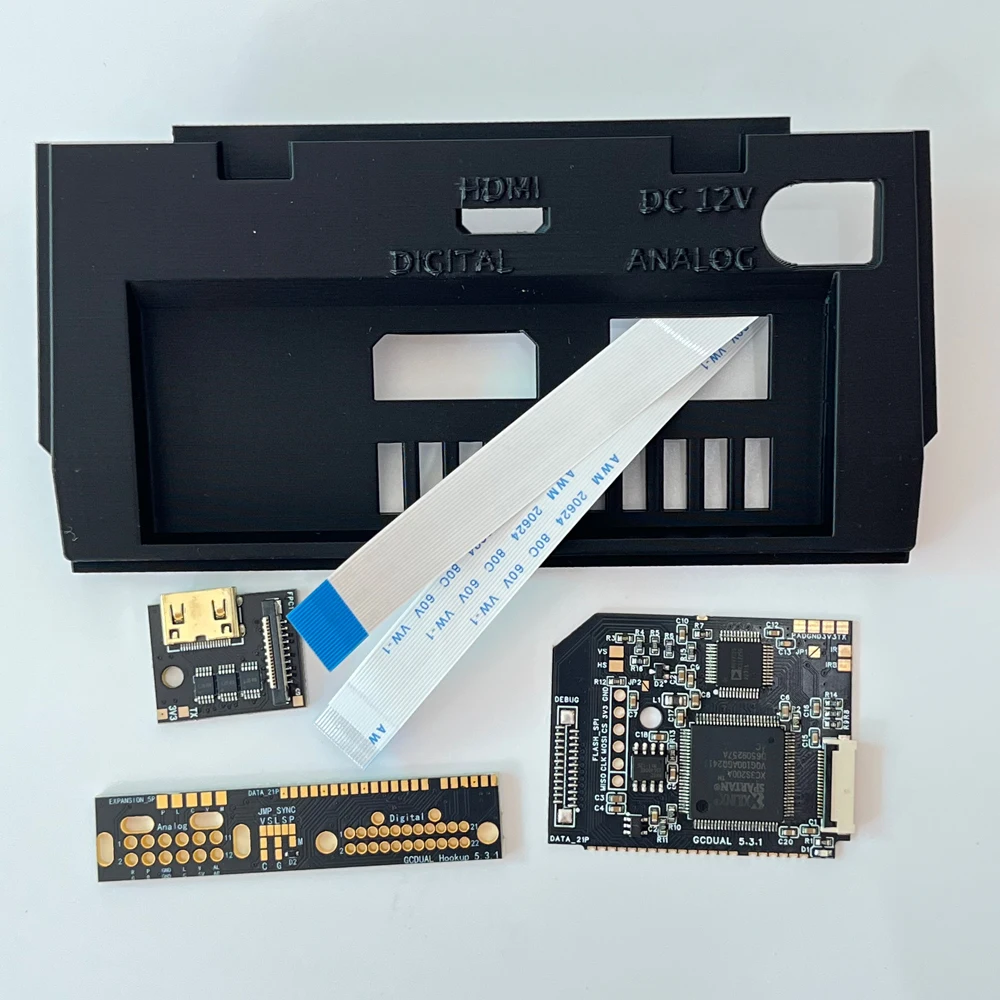
1 × Main PCB
1 × Main QSB
1 × HDMI PCB | full-size HDMI Type-A
1 × FFC cable
2 × Screws Nuts
2 × Washers For HDMI PCB
1 × AWG Wire
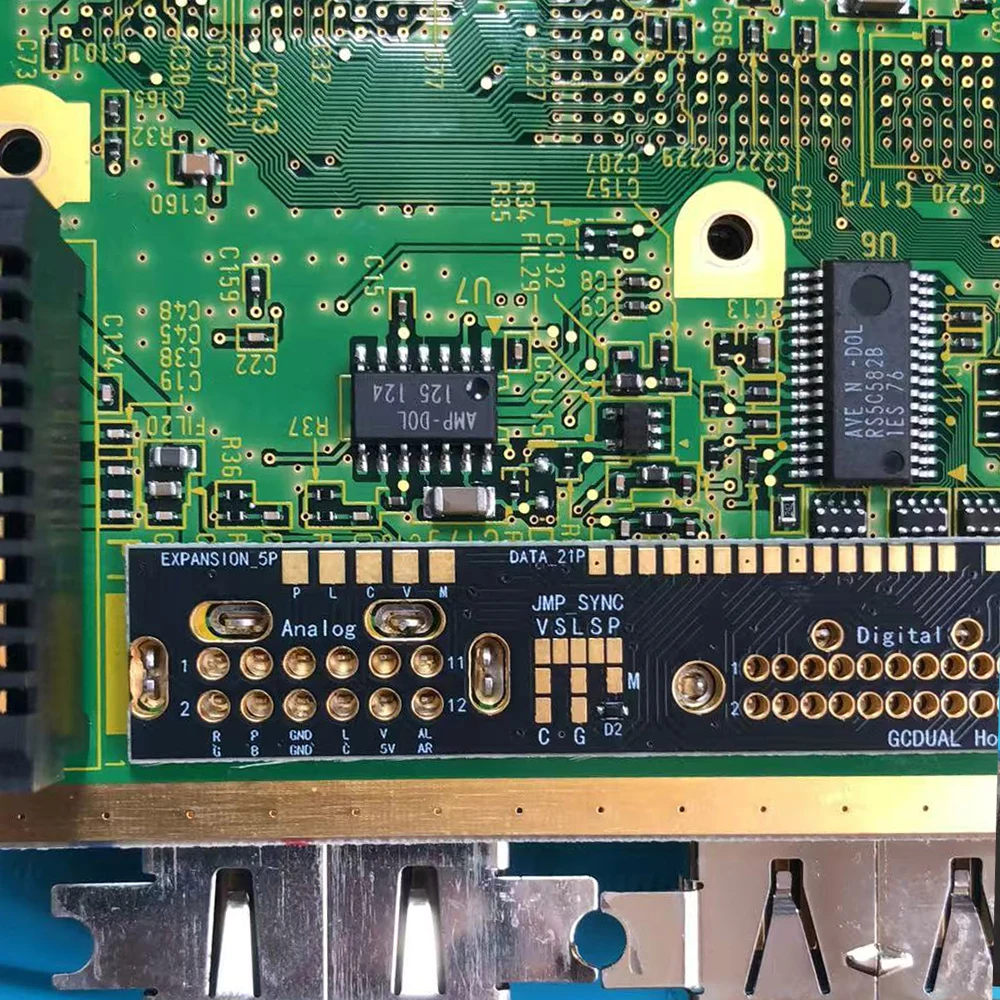
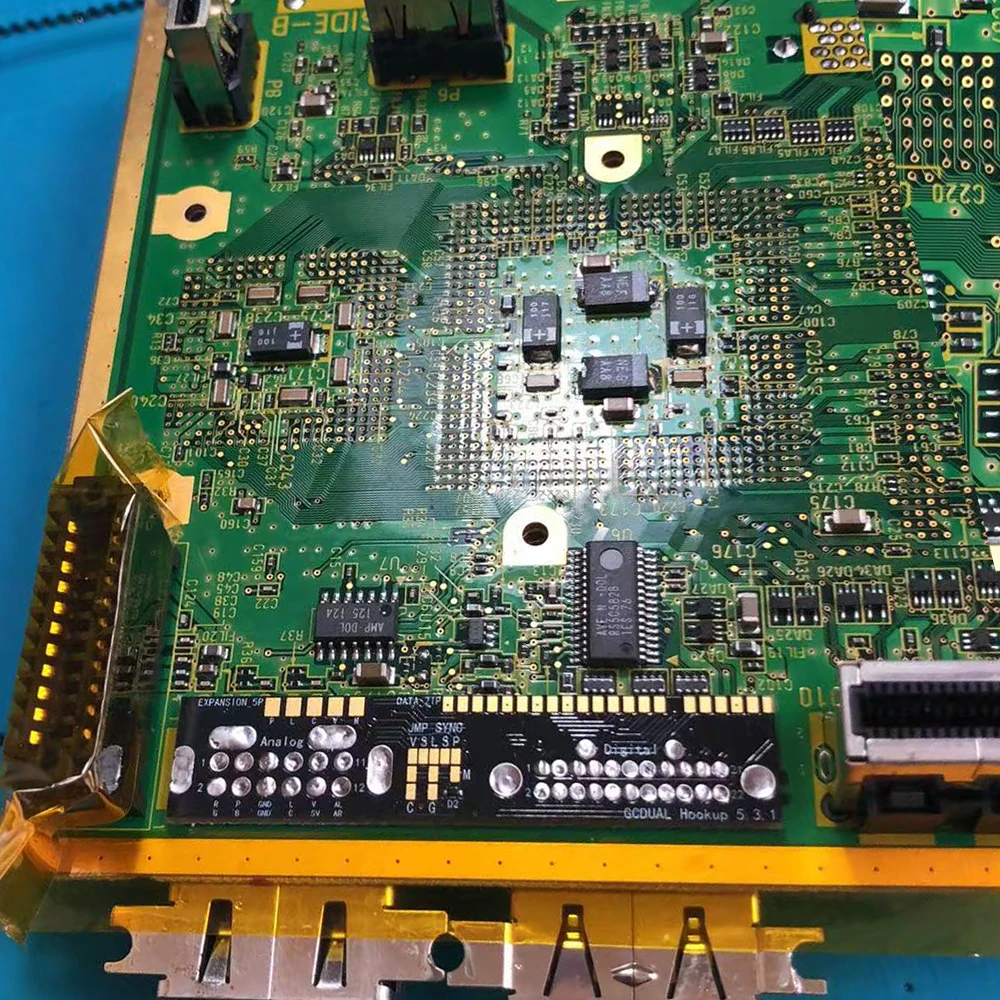
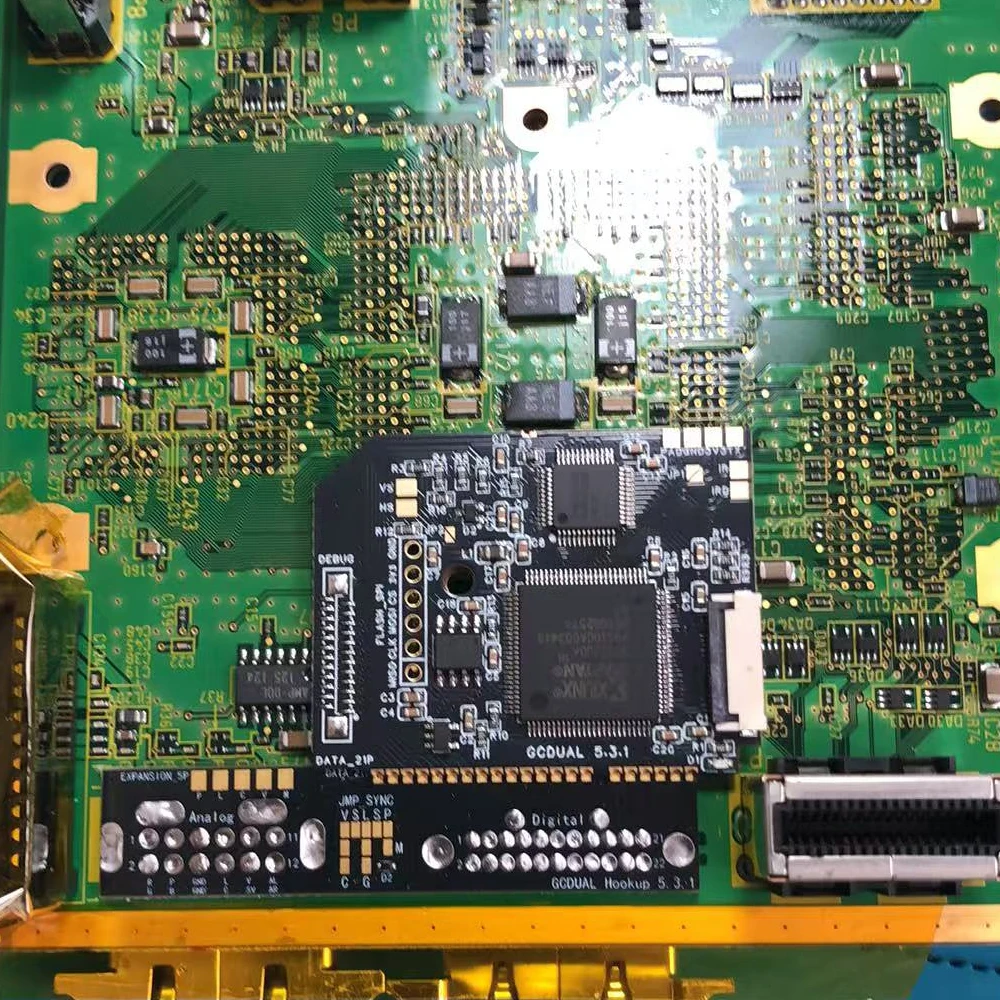
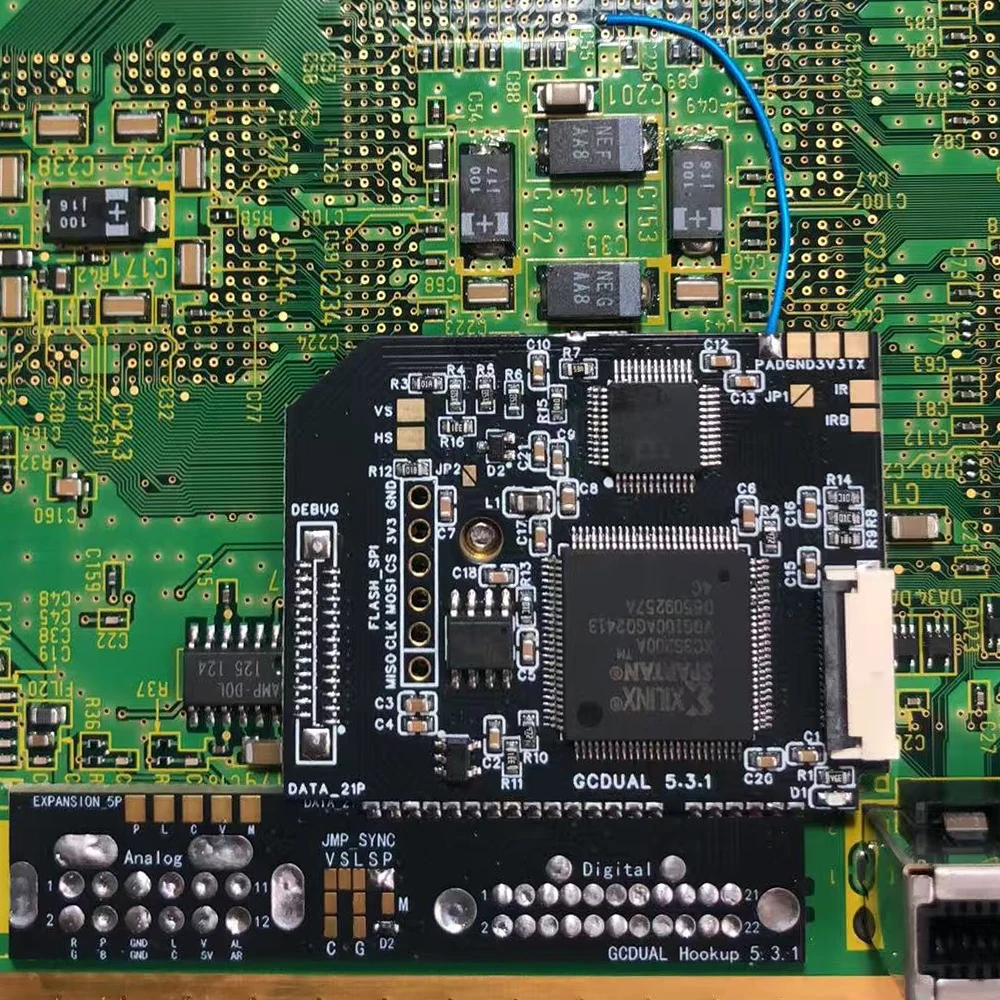
GCDual 5.3.1 Installation Guide
Please refer to the PDF file in the “Item guides & documentations” section.
GCDual 5.3.1 Troubleshooting Guide
**No Power / LED Off** – Check the **3.3V supply** and all QSB solder joints. The 5V line is mainly used for HDMI display detection. Make sure **JP1 is not shorted during normal use**.
**LED Stays Solid** – The **CLK signal is missing or shorted to ground**. Check and reflow the CLK connection.
**LED Blinks but No Picture** – The FPGA is receiving the clock. Check all **VData/VD# and CSEL connections**, then test another HDMI cable and display.
**No HDMI Signal but Analog Video Works** – Reseat the **FFC cable** in the correct orientation and inspect both ZIF connectors. Check the HDMI PCB, cable and display. Do not pinch or sharply bend the FFC cable.
**Intermittent / Corrupted / Garbled Video** – Recheck the QSB for cold joints, bridges or weak connections, especially the digital video lines. GCVideo Diagnostics can identify VData lines that are missing, stuck, swapped or shorted.
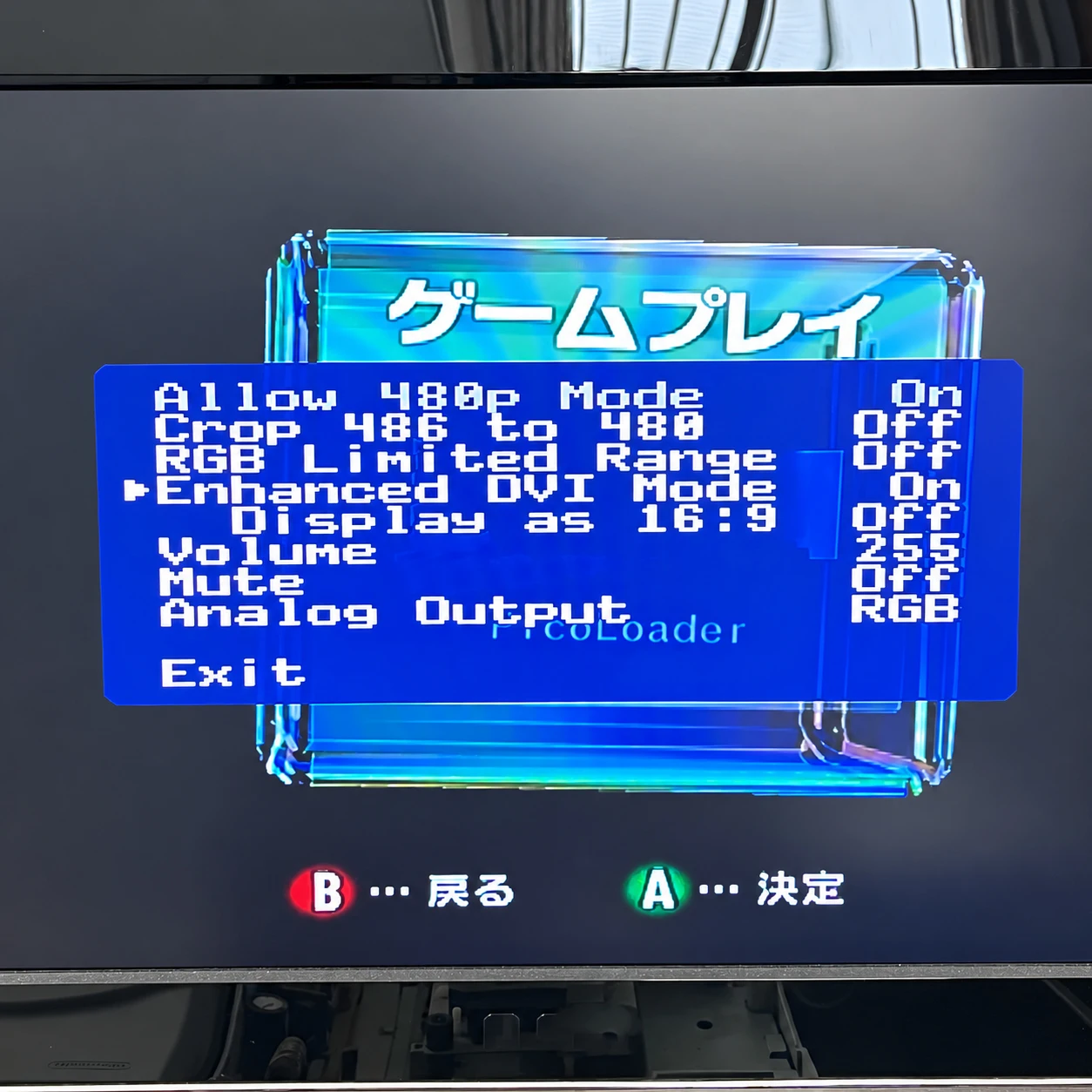
**No HDMI Audio** – Set **Enhanced DVI Mode = On**, check **Volume** and **Mute**, then verify the **LRCK, ADAT and BCLK** connections.
**Crackling / Distorted Audio** – Check **LRCK / ADAT / BCLK** first. If **Sample Rate Hack** is enabled, turn it off and test again; this option can introduce slight audio artifacts.
**OSD Menu Does Not Open** – Use a controller in **Port 1** and hold **L + R + X + Y** for about one second. If it still does not work, check the **PAD/controller-data wire**.
**Settings Are Lost After Power-Off** – After changing settings, select **Store Settings** in the main menu. Simply changing a value does not save it permanently.
**Settings Suddenly Reset / OSD Opens by Itself** – Some **8BitDo GameCube Retro Receivers** have been reported to trigger the GCVideo reset combination. Remove the receiver and test with a standard wired controller.
**TV Shows “No Signal” in 240p / 480i** – Some displays do not accept these digital timings. Try the **Line Doubler** to output 480p/576p, or test another TV/monitor.
**Picture Disappears When Switching 480i ↔ 480p** – Some TVs/scalers need time to re-sync when the video mode changes. Try switching HDMI inputs and back, enabling the Line Doubler for the problematic mode, or testing another display.
**Brief Black Screen During Game Transitions** – Some games change video timing between gameplay, menus or cutscenes. A short HDMI re-sync can occur and does not necessarily indicate a faulty GCDual. GCVideo 3.1 reduced excessive blanking in some games.
**Washed-Out Blacks / Crushed Blacks** – Match the GCVideo **RGB Full / Limited Range** setting with your TV or scaler. A range mismatch causes washed-out or clipped blacks and whites.
**Wrong Colors After Changing Digital Color Format** – Some displays do not correctly support **YC444 or YC422** in every mode. Return to a compatible RGB output setting and test again. YCbCr settings may also affect the auxiliary analog output.
**No RGB / YPbPr Analog Output** – Check **Analog Output** in the GCVideo menu and verify the QSB jumper configuration. Grounding the **Mode (M)** input forces YPbPr.
* **RGB / Sync Problems with SCART** – For **GCDual 5.3 and later**, JP2 must match the SCART cable configuration. Follow the 5.3+ installation guide rather than older 5.2 instructions.
**Using Luma / Chroma / Composite Pins on NTSC Consoles** – The original console signals must be disconnected before GCDual reuses these Multi-Out pins.
**RGB Problems on PAL Consoles** – PAL consoles already have factory RGB signals on the Multi-Out. The original RGB/S signals must be disconnected as specified in the jumper guide before GCDual drives those pins.
* **RGB Pads Appear Shorted to Ground** – Do not immediately assume a fault. The RGB outputs use **75Ω termination**, so a low-resistance path to ground can be normal. Check actual resistance and the schematic before removing parts.
**480i Line-Doubled Picture Looks Unstable or Poor** – This is a limitation of simple line doubling. If your display accepts 480i/576i directly, GCVideo recommends disabling the Line Doubler for better image quality.
**PAL Game Does Not Offer 480p** – This is usually not a GCDual fault. Most PAL GameCube games do not provide a native progressive-scan option. Swiss can force progressive output for some titles.
**Black-and-White Picture with No Audio** – GCVideo may be running in **Firmware Update Mode**. In this mode, black-and-white video and no audio are normal. Exit the updater or complete the correct firmware update.
**Older Firmware / Compatibility Problems** – Check the version in the GCVideo OSD. **GCVideo-DVI 3.1** remains the official latest release and includes improved audio timing and compatibility with some displays. Use the **dual-gc** firmware for GCDual hardware.
**Most GCDual problems are installation-related. If a problem occurs, first check the QSB solder joints, CLK/VData/audio connections, FFC cable orientation and GCVideo settings before assuming the board is defective.